
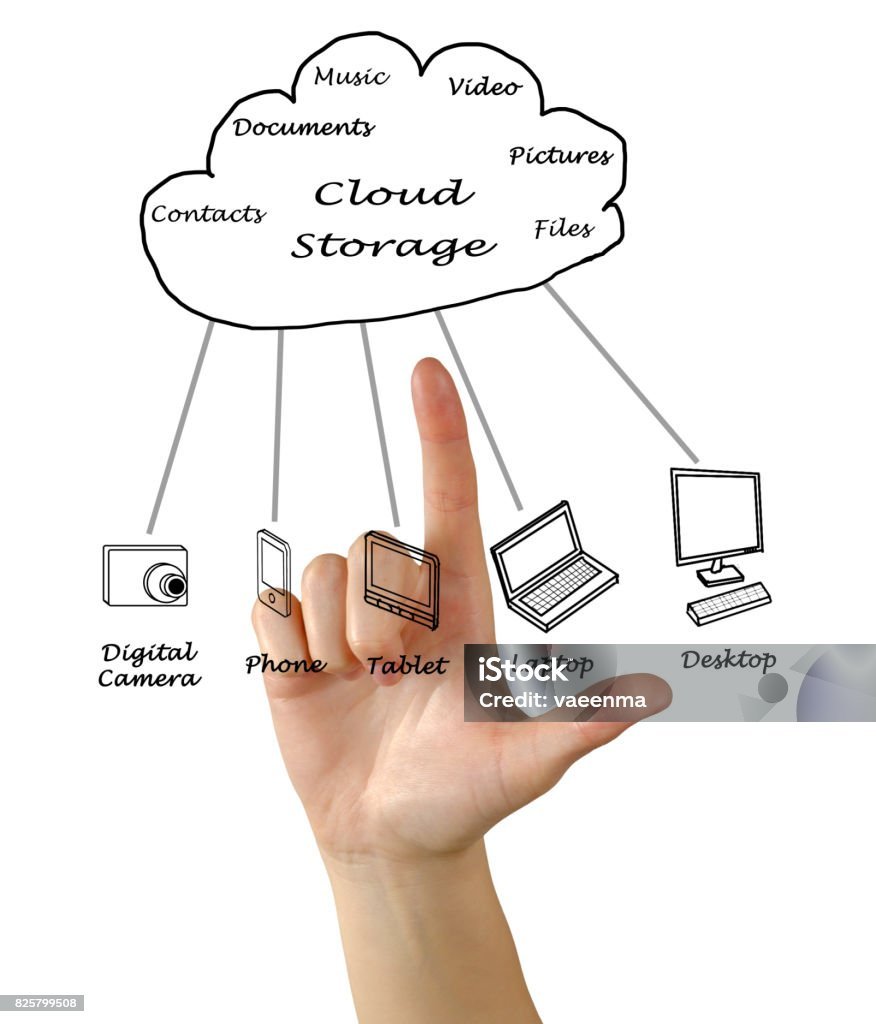
How to set up cloud storage
In today’s digital world, cloud storage is more than a convenience—it’s a reliable backbone for personal files, business data, and collaborative projects. Setting up cloud storage doesn’t have to be complicated. This practical guide walks you through defining your needs, choosing a provider, and configuring a secure, organized, and efficient storage system.
First, define your needs
Start by outlining what you’ll store and how you’ll access it. Are you backing up family photos, syncing documents across devices, or sharing large project files with a team? Consider:
- Data types: documents, photos, videos, backups, or backups of devices
- Access patterns: multiple devices, offline access, or shared access with colleagues
- Security requirements: encryption in transit and at rest, two-factor authentication (2FA), and compliance needs (HIPAA, GDPR, etc.)
- Budget and growth: free tiers, paid plans, and potential data growth
A clear picture of your needs will guide your provider choice and configuration.
Choose a provider that fits your scenario
Popular cloud storage options (as of 2025) include Google Drive, Microsoft OneDrive, Dropbox, Apple iCloud, and specialized services like Backblaze or Wasabi for backups, plus enterprise-grade options (AWS S3, Azure Blob, Google Cloud Storage) for more technical setups. When comparing providers, weigh:
- Ease of use: apps for desktop and mobile, web access, and seamless syncing
- Sync vs. backup: do you need real-time synchronization or simple backups?
- Sharing controls: link expiration, password protection, and access revocation
- Security measures: 2FA, encryption options, and encryption at rest
- Compliance: support for HIPAA, SOC 2, GDPR, etc.
- Cost structure: storage tiers, data transfer fees, and long-term costs
Set up your account and establish security basics
- Create an account and enable 2FA using an authenticator app (not SMS when possible).
- Install desktop and mobile apps to enable automatic syncing or backups.
- Create a logical folder structure aligned with your use cases (Personal, Work, Photos, Backups).
- Decide which folders are always synced and which are stored online-only to save space.
Security and privacy configurations
- Turn on encryption features where available; understand what is encrypted in transit vs. at rest.
- Review sharing permissions: private by default, share with specific people, or use password-protected links.
- Enable version history so you can recover previous file versions.
- For sensitive data, consider client-side encryption before upload.
Organize with thoughtful data lifecycle rules
- Use consistent naming conventions and folder hierarchies to improve searchability.
- Enable versioning and set retention policies if your provider supports them.
- Consider lifecycle rules to move or delete older data, saving costs over time.
Backup strategy and redundancy
- Apply the 3-2-1 rule: three copies of important data, on two different media, with one offsite or in the cloud.
- Keep a local backup (external drive) for critical files alongside cloud storage.
- For higher resilience, duplicate backups across two independent cloud providers.
Ongoing maintenance and best practices
- Regularly audit access permissions and shared links.
- Keep software clients updated to patch security vulnerabilities.
- Periodically test data restoration from backups to ensure reliability.
- Use metadata and tags where supported to improve searchability.
Common workflows by use case
- Personal: automatic photo and document backups, offline access for key files.
- Small teams: shared folders with role-based access, activity logs, and version control.
- Tech-savvy users: programmatic backups via APIs, lifecycle policies, and cross-cloud redundancy read more…




2 thoughts on “How to set up cloud storage”